Tickets
The request queue: triage, assignment, SLA countdowns, internal notes and time.
/admin/tickets — the request queue. A ticket is one thing a client has asked for.
Clients raise them from their portal, your staff raise them on a client's behalf, and the SEO
module raises them from findings. Everything about a ticket is visible to the client except
internal notes.
#The queue
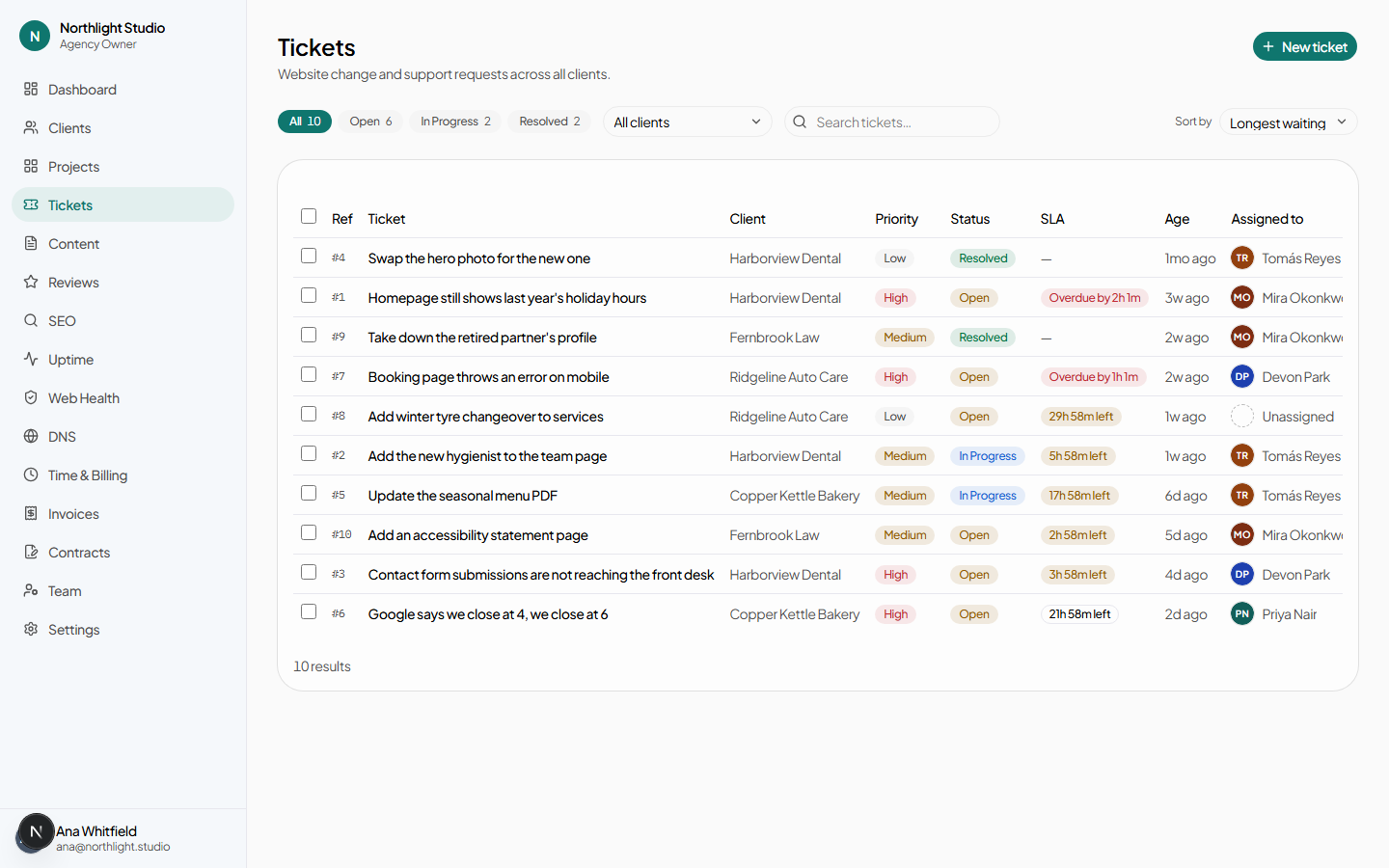
| Control | What it does |
|---|---|
| All / Open / In Progress / Resolved | Status filter, each showing its own count. |
| Client filter | Narrows to one client. |
| Search tickets… | Matches on title and body. |
| Sort | Oldest, most recent, SLA, priority or status. SLA is the one to use when you are triaging: it puts what is closest to breaching first. |
| Previous / Next | Pagination. |
#Working on several at once
Tick the checkbox on each row you want — or the one in the header to select the page — and a bar appears with three dropdowns:
- Set status… — Open, In Progress or Resolved.
- Set priority… — High, Medium or Low.
- Assign to… — Unassigned, or a member of your team.
Clear drops the selection without applying anything.
#A ticket
#Status
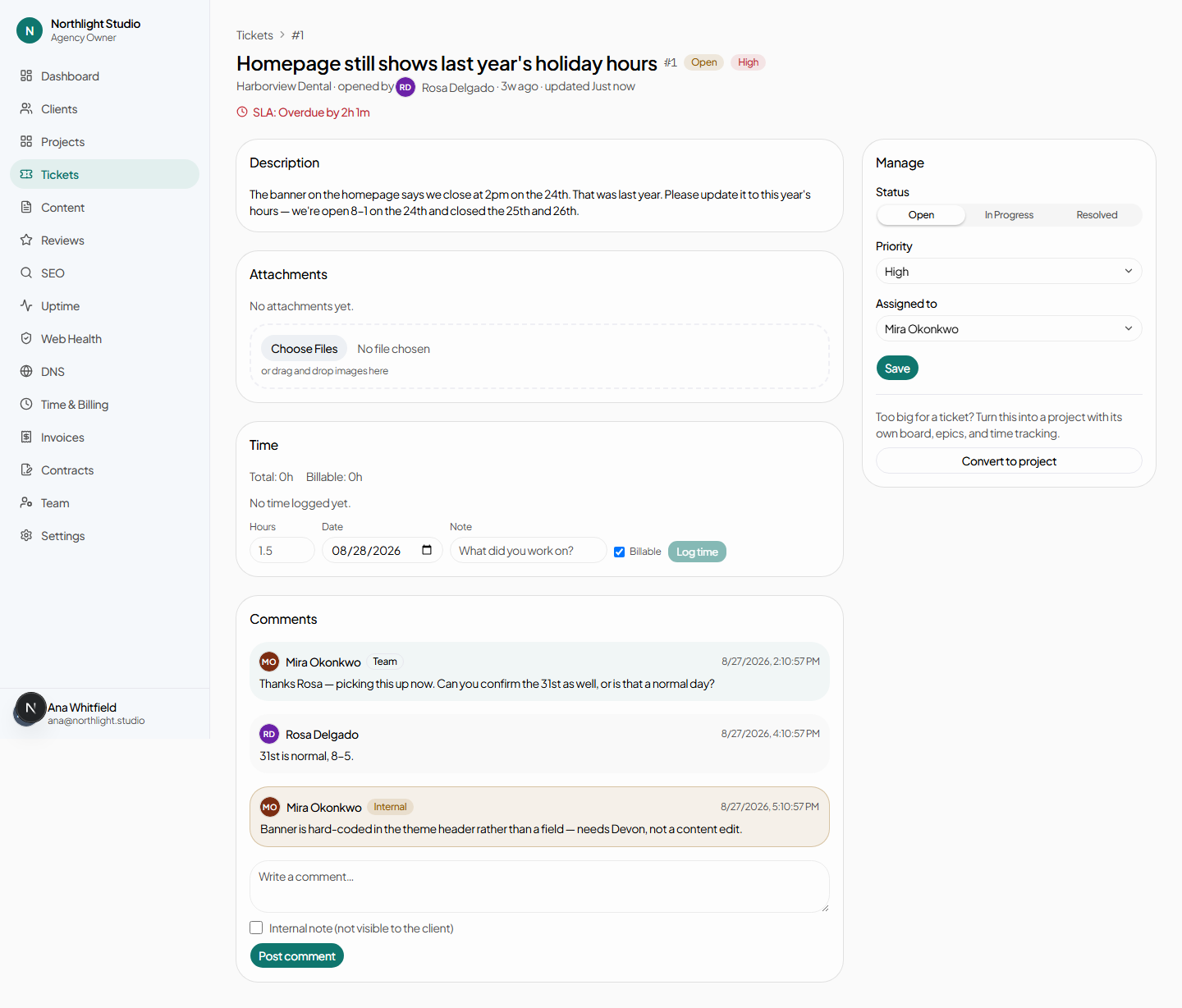
A segmented control: Open, In Progress, Resolved. Every change appears in the activity timeline with who made it and when, and the same is true of assignment.
A client can reopen a resolved ticket themselves — the button in their portal reads This isn't fixed — reopen. They cannot reopen one that has been converted to a project, because the work has moved somewhere the ticket no longer describes.
#The SLA countdown
When the client has a response time set, the ticket shows a live countdown to its deadline. The hours come from the client's Settings tab; a client with no SLA set has no countdown and never appears in the dashboard's Needs attention table.
Offboarding a client clears the deadlines on whatever was still in flight.
#Priority and assignment
The manage panel on the right holds priority and Assigned to; press Save to apply. Both are also available in bulk from the queue.
#Comments and internal notes
The comment box has an internal note toggle. With it off you are talking to the client; with it on you are talking to your own team, and the button changes to Post internal note to make that unmistakable.
#Attachments
Pick files or drag them onto the drop area. Both sides can attach: a client adding a screenshot of what is wrong is the common case. The × removes one.
#Logging time
Hours, an optional note, the date the work was done, and a billable checkbox. Time logged here flows into Time and billing and, from there, onto an invoice. Entries can be deleted.
Log against the date the work happened rather than the date you are typing — the time report is built on that field, and an invoice generated for last month will miss anything dated today.
#Turning a ticket into a project
Convert to project creates a project seeded from the ticket, for a request that has turned out to be bigger than a single job. Afterwards:
- The ticket shows a Converted to project → badge linking to it.
- The project shows a Converted from ticket → badge linking back.
- The client can no longer reopen the ticket.
#Raising one on a client’s behalf
New ticket on the queue, for the request that arrived by phone or email instead of through the portal. Needs ticket.create.
Pick the client, write a summary and the details, set the urgency, and assign it if you can. Attachments work the same as anywhere else.
#Tickets raised from SEO findings
Two places in the SEO module create tickets: the Open ticket button on an alert, and Create ticket on an AI recommendation. Both need ticket.create alongside seo.manage, and both link the alert or recommendation to the ticket they produced so nobody raises it twice.
#What the client sees
In their portal, tickets are called Requests. They can raise one, comment on one, attach files, and reopen a resolved one. They see status, priority, the shared comment thread and the SLA countdown. They do not see internal notes, logged time, or your assignment. See The client portal → Requests.