Dashboard
What needs attention today, and the month-over-month numbers behind it.
/admin — the first page your staff see. It is built around one question: what is
slipping? Everything on it is a link into the thing that needs doing, so nothing here is a number
you have to go and look up somewhere else.
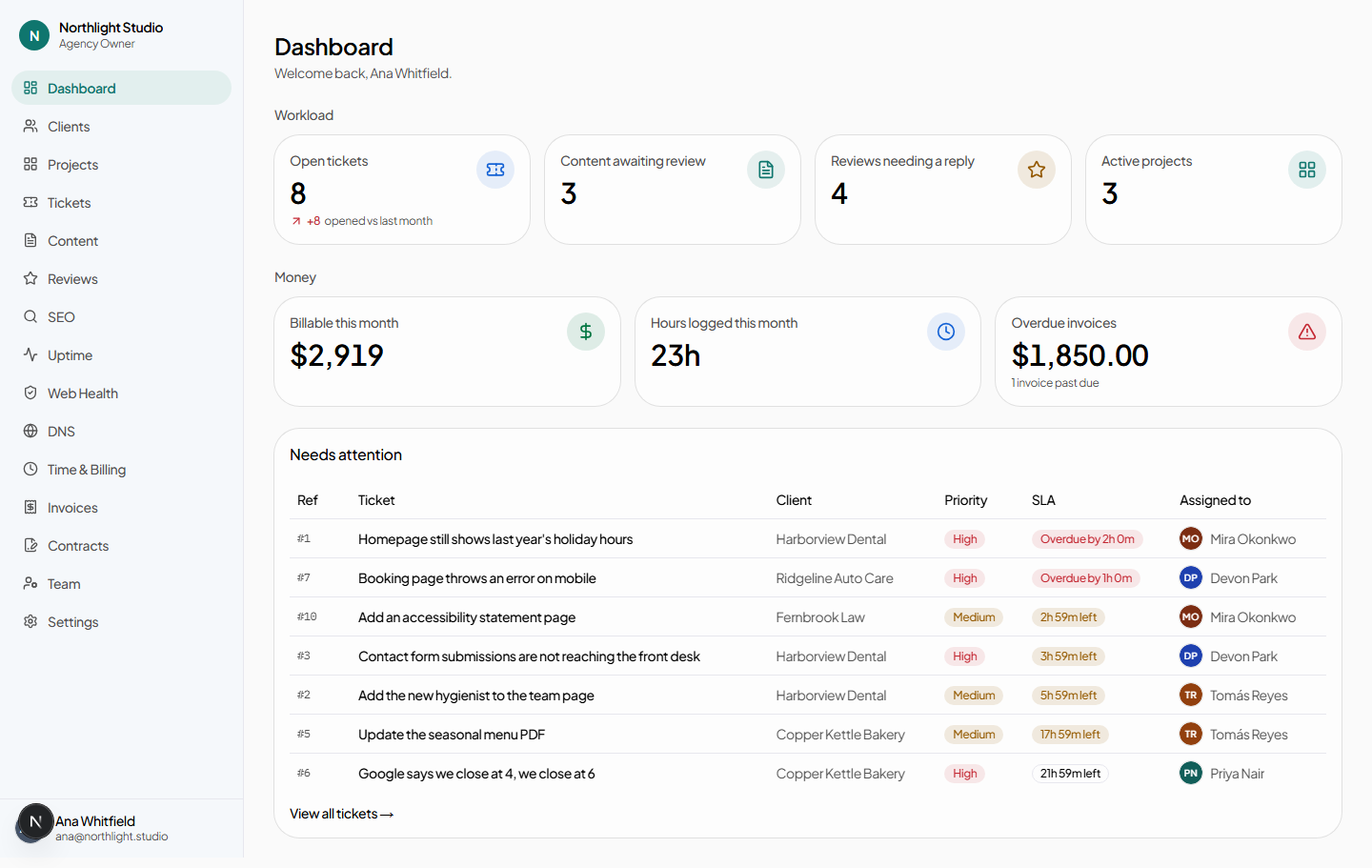
#The tiles
| Tile | Counts | Takes you to |
|---|---|---|
| Open tickets | Requests not yet resolved, across every client | Tickets, filtered to Open |
| Content awaiting review | Items sitting with someone for approval | Content |
| Reviews needing a reply | Reviews with no recorded response | Reviews, filtered to Needs response |
| Active projects | Projects not completed or archived | Projects |
| Billable this month | Value of billable hours logged so far | Time & Billing |
| Hours logged this month | All hours, billable or not | Time & Billing |
| Overdue invoices | Sent invoices past their due date | Invoices, filtered to Overdue |
#The month-over-month figures
The small change indicator under a tile compares the same stretch of last month, not the whole of it — on the 9th, it compares the first nine days of this month with the first nine days of last. Comparing a partial month against a complete one would show every metric collapsing every month.
When last month's figure was zero, no delta is shown at all rather than an infinite increase.
#Needs attention
A table of tickets approaching or past their SLA deadline, worst first. The deadline comes from the response time set on each client — a client with no SLA hours set contributes nothing here, which is one good reason to set one. See The client record → SLA.
Each row links to the ticket. View all tickets → sits at the bottom.
#Waiting on a client for over five days
Content items that have been sitting with a client for review for more than five days. This is the list to work from before a status call: it is the work you have finished and cannot invoice or publish because somebody has not pressed Approve.
Each row links to the content item, where the approval progress card names exactly who is being waited on. See Content approvals.
#Getting around from here
#The command palette
Press Ctrl+K — or ⌘+K on a Mac — anywhere in the agency portal. Start typing and it searches:
- every navigation destination,
- every client,
- up to 100 active projects,
- up to 100 open tickets.
↑ and ↓ move, Enter opens, Esc closes. There is no command palette in the client portal.
#The sidebar
Dashboard, Clients, Projects, Tickets, Content and Reviews are always present. The rest appear only when your role holds the permission behind them:
| Sidebar entry | Needs |
|---|---|
| SEO | seo.view |
| Uptime | uptime.view |
| Time & Billing | agency.view_billing |
| Invoices | agency.view_billing |
| Contracts | contract.view |
| Team | agency.manage_team |
On a narrow screen the sidebar becomes a drawer behind the menu button; Esc closes it.
#The user menu
Top right, on every page: the appearance choice (Light, Dark, System), Your profile, Sign-in security and Sign out. See Signing in.
#Banners you may see
- An amber “viewing as” banner
- Somebody is looking at this account through view-as or impersonation. It is read-only, it counts down, and Stop viewing ends it. See Security → impersonation.
- A read-only notice across the agency
- The agency's subscription is past due. Everything can be read; nothing can be changed until it is settled. This deliberately does not lock out the person most likely to be able to pay.
- “Something went wrong” with a Try again button
- An error the page could not recover from. Try again re-runs the request. If the problem was a permission rather than a fault, the button is hidden — retrying would not help.