Brand assets
Brand profiles, colour palettes and logo files, shared between your team and the client.
/admin/clients/[id]/branding — where a client's logos, colour palettes and brand notes
live, so the writer drafting a post and the designer building a page are working from the same
thing.
#Brands
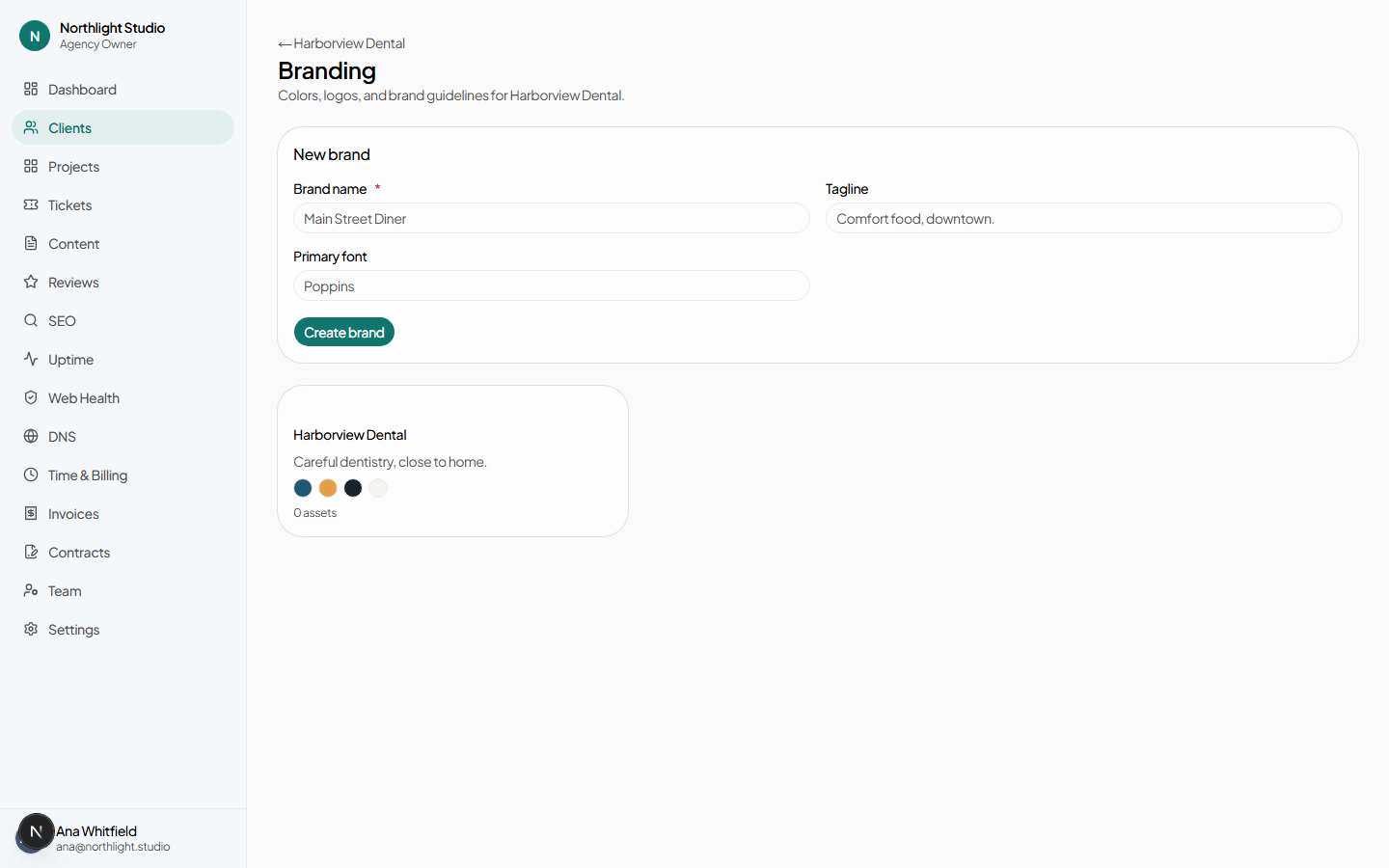
A client can have more than one brand — a parent company and a sub-brand, a practice and its associated clinic, a restaurant group's individual venues. Each is its own card.
Create one with a name and an optional tagline, then press Create brand. Click the card to open it.
#Inside a brand
#Name, tagline, font and notes
These four fields autosave as you leave them; Save is there when you would rather be certain. Font family and Notes are free text — the place for "headline font is Söhne, body is whatever the CMS defaults to" and the rules a palette cannot express.
#Colours
Add a colour with a label and a hex value — for example
Primary and #0F4C81. The × on a swatch removes it.
These are documentation, not theming: they record what the client's brand is. The colour that themes the portal is your agency's primary colour, set in Agency settings.
#Files
Choose what you are uploading with the Logo, Image and Other chips, then either pick files or drag them onto the drop area. PNG, JPEG, GIF and WebP are accepted, several at a time. The × on a thumbnail removes that file.
How the upload works
Files never pass through the application. The browser asks for a one-time upload URL, sends the file straight to storage, and then confirms — and only that last step writes the record. Two consequences worth knowing:
- A file that fails midway leaves nothing behind. There is no half-uploaded asset to clean up.
- Large files are limited by your own connection rather than by a request timeout on our side.
#Deleting a brand
Delete brand asks for confirmation and names what goes with it — its colours and its uploaded assets. There is no undo.