The client record
Overview, Profile, Team and Settings — locations, websites, contacts, modules, SLA, rates, approval chains and account status.
/admin/clients/[id] — four tabs holding everything the platform knows about one
client. Most of the configuration that changes how the rest of the product behaves for that client
is here, so it is worth reading once in full.
#Overview
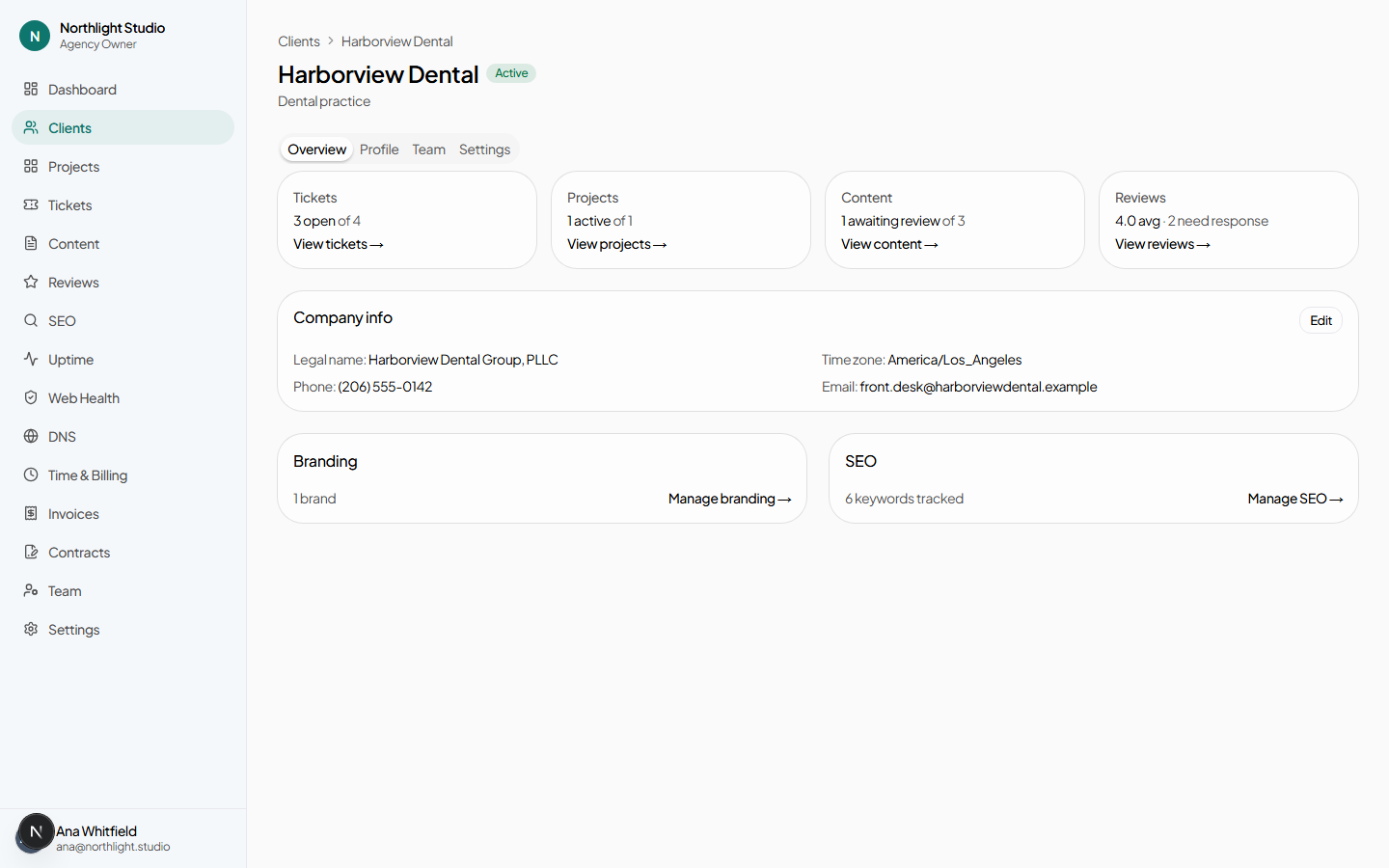
The summary tab. It carries:
- The getting-started checklist, while any of the five onboarding steps has produced no records. It disappears on its own once they all have.
- Counts and shortcuts into this client's tickets, projects, content and reviews.
- The company info card, with an Edit link to the Profile tab.
- Manage branding → and, with seo.view, Manage SEO →.
#Profile
Everything factual about the business. All of it is optional except where noted, and the company info fields autosave as you leave them — the Save button is there for the times you would rather be sure.
#Company info
Client name, legal name, industry, time zone, company phone, company email, and brand notes — free text for the things a style guide would say and a colour palette cannot.
#Locations
One row per place the client operates from. Each row can be edited inline with the pencil, and carries:
- Make primary — on non-primary locations. The primary location is the default for anything that needs one place.
- Google Place ID with a Save button — the identifier that ties this address to its Google Business Profile.
- Sync Google reviews — pulls the reviews on that profile into Reviews.
- Change Place ID — if the wrong profile was matched.
- Remove location, behind a confirmation. Rankings already measured keep the location they were searched from; they are history, and history is not rewritten by a deletion.
Finding a Google Place ID
Find from address looks the address up and offers the matching business profiles; press one to attach it.
#Websites
Domain (required), status — Live, In development, Needs redesign — CMS or platform, and hosting provider. Editable inline.
Adding a website marked Live also starts uptime monitoring, and the form tells you when it has.
#Contacts, staff, services, socials and access
| Section | Fields | What it is for |
|---|---|---|
| Contacts | Name*, type (Primary / Billing / Technical / Other), role, phone, email | Who to call. Reference only — not logins. |
| Services | Service name*, description | What the client sells. Useful context for content and SEO work. |
| Social accounts | Platform (Facebook / Instagram / LinkedIn / X / TikTok / YouTube / Other), URL* | Where their audience is. A recorded URL also lets a review reply link back to its source. |
| Third-party access | Service (Google Business Profile / Analytics / Ads / Meta Business / Other), status (Not requested / Requested / Granted), notes | A checklist of the accounts you have asked for and whether you got them. |
#Team
Two lists that are easy to confuse, so they are worth stating plainly:
- Team
- Client portal users with logins. Invite by email address and role; a pending invitation can be revoked. These people sign in and see the portal.
- Staff
- The client's employees as reference data. Name, title and bio. No login, no email, no access to anything. This is the list you keep so you know who "Dana in accounts" is.
Client-scope roles are listed in Roles and permissions.
#Settings
The tab that changes how the platform behaves for this client.
#Modules
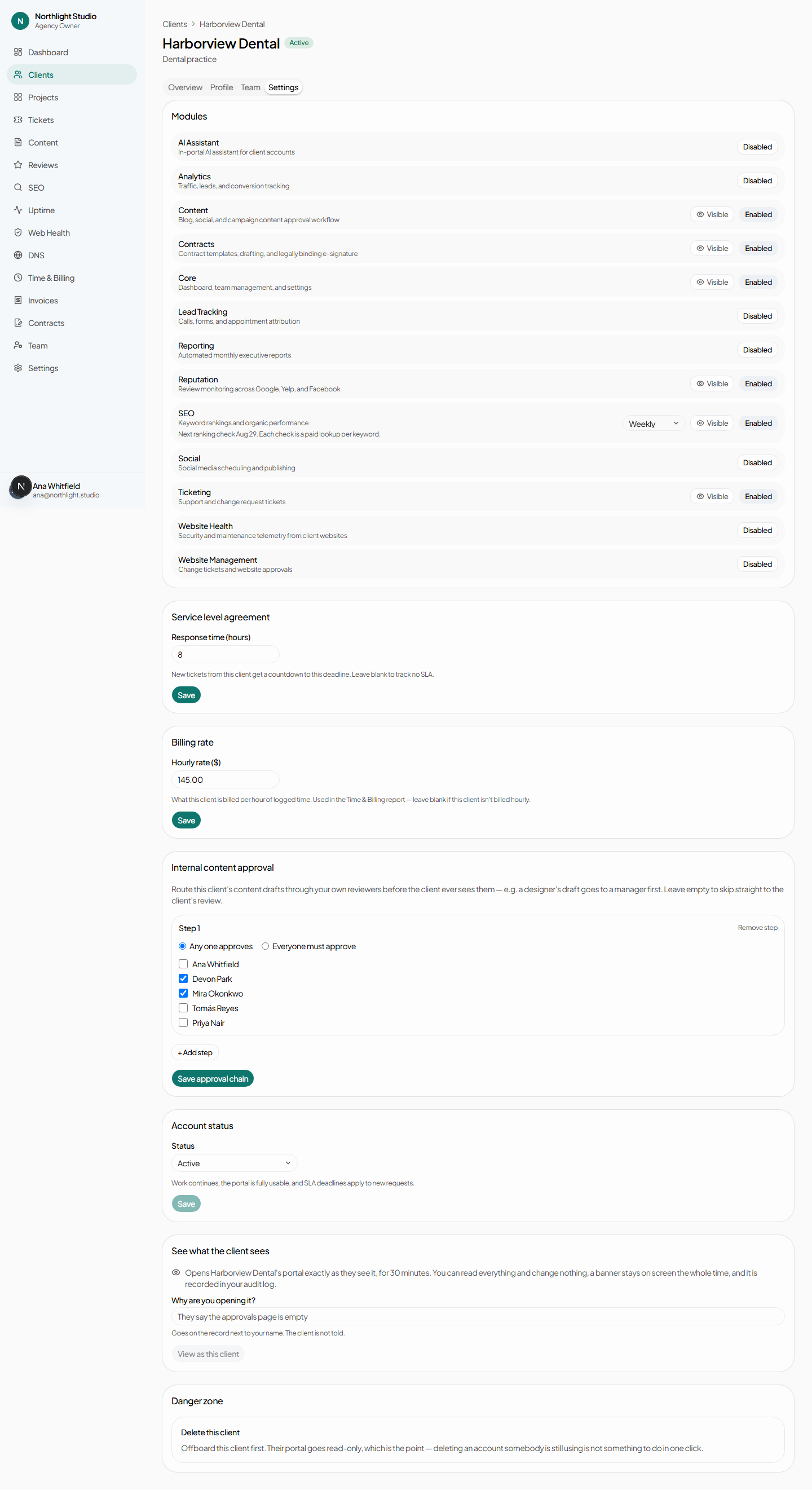
One row per module with two switches. Enabled decides whether the capability exists for this client at all; Visible decides whether the client can see it. The second only appears once the first is on.
Hiding a module never stops the work behind it. Rankings gathered weekly and discussed monthly are an enabled, hidden SEO module. Full catalogue: Modules.
#SEO cadence
Weekly, Daily or Monthly. Saves as soon as you change it. This is how often tracked keywords are re-checked, and it is the single biggest lever on what a client costs to serve — the control warns that daily is roughly seven times weekly spend.
Weekly is the right answer for almost every client. See SEO.
#Response time (SLA)
Hours. Sets the deadline on every ticket this client raises, drives the live countdown on the ticket page, and populates the Needs attention table on the dashboard.
Leave it blank and tickets simply have no deadline — nothing breaks, but nothing warns you either.
#Hourly rate
What billable time is worth for this client. Without it, billable hours appear on the time report with a dash for the amount and cannot be invoiced. The report links any client in that state straight back to this field.
#Internal approval chain
Who on your side has to approve this client's content before it goes to the client. Add steps with + Add step, choose the approvers on each, and set whether the step needs any one of them or all of them.
A client with no chain skips internal review entirely: content goes from draft to the client. The client's own review chain is configured separately, by them, on their Your team page. See Content approvals.
#Account status
Three states. The consequence line under the control updates as you change the selection, before you save.
| Status | Paid work | Their portal | SLA clocks | Client seat |
|---|---|---|---|---|
| Active | Runs | Full access | Running | Occupied |
| Paused | Stops | Unchanged — they can still raise requests | Still running | Occupied |
| Offboarded | Stops | Read-only, with a persistent banner | Cleared | Freed |
Each of those is a deliberate choice rather than a side effect:
- A pause stops the meter, not the relationship. Rank checks and crawls stop spending; the portal is untouched, because telling a client mid-pause that they can no longer raise a request sends a message the agency did not ask to send.
- A pause does not stop SLA clocks. Work committed to before the pause is still owed, and quietly voiding those deadlines would be the agency marking its own homework.
- Offboarding goes read-only rather than dark. The end of a relationship is not a reason to take away someone's record of what they asked for and what was agreed. They keep every page and lose every button.
#View as this client
Type a reason — at least five characters — and press View as this client. Their portal opens exactly as they see it.
- Read-only. Every write is refused, not merely hidden.
- Bannered. An amber bar with a live countdown sits across the top.
- Time-boxed. It ends on its own; Stop viewing ends it sooner.
- Audited. The reason you typed is recorded with the session.
#Closing an account
The danger zone at the bottom of Settings. Both routes require typing the client's name to confirm.
#Schedule deletion
The normal path. The account is marked for deletion and nothing is destroyed for 30 days. During the window:
- The record is still readable, and the client's own people keep read-only access.
- A reminder is sent seven days before the deadline, by a job kept separate from the deletion itself — so a bounced reminder cannot stop a deletion, and a failed deletion cannot suppress a warning.
- Cancel deletion restores the account. It needs a free client seat, so if you have filled the gap in the meantime, raise your seat count first.
When the window expires, a background job re-checks the deadline and then destroys the records. It is the one irreversible job on the platform.
#Delete permanently now
Skips the window. There is no undo, no export afterwards, and no copy retained. Take the export first if you might want one.
/api/clients/[clientId]/export while the account still exists. Do it before
scheduling, not after — the point of the window is the chance to change your mind, not a second
chance to take a copy.
#Branding
Manage branding → on the Overview tab opens the client's brand profiles — colour palettes, logo files and font notes, shared with the client's own Brand assets page. See Brand assets.
#A note on ids in the URL
The client id in the address is always resolved within your own agency. Pasting an id belonging to another agency returns 404 Not found rather than a permission error — a denial would confirm the record exists.