Sending from your own domain
Adding a sending domain so notifications arrive from you rather than from the platform.
/admin/settings/email — the last piece of white labelling. Until a domain is verified,
notifications go out from the platform's address; afterwards they come from yours, and the recipient
has no reason to learn this platform exists.
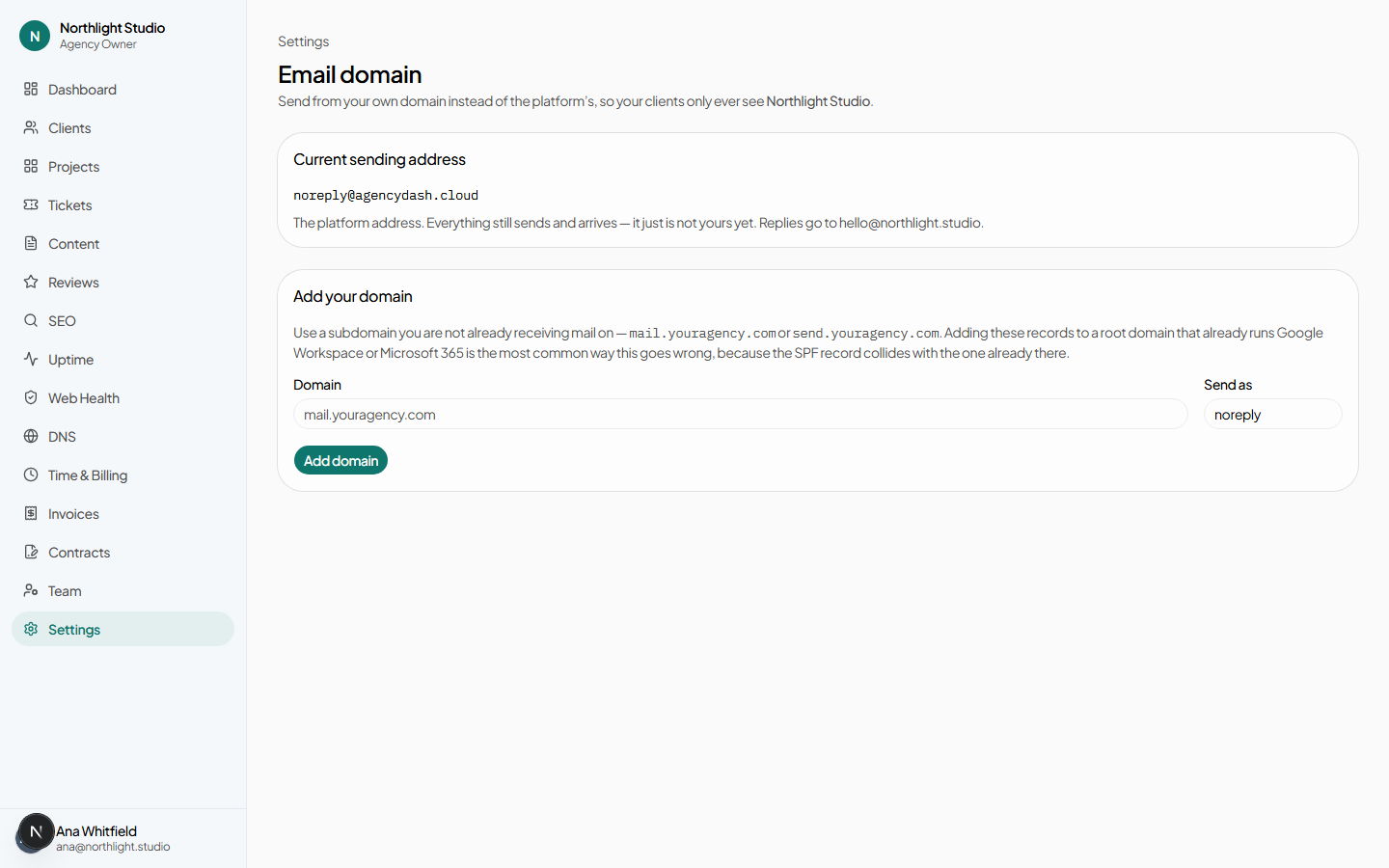
#Adding a domain
Two fields:
- Domain — the domain mail will be sent from.
-
From local part — the bit before the @.
hello,notify,no-reply.
Add domain registers it and returns the DNS records you have to publish.
mail.your-agency.com rather than your-agency.com. The page says so when
you enter a root domain, and it is advice rather than a rule. The reason: adding an SPF record to
a root domain that already carries Google Workspace or Microsoft 365 records is the single most
common way an agency breaks its own email while setting this up.
#Publishing the records
The page lists each record with its type, name and value — DKIM signing keys, an SPF-style sending record, and the return-path record that makes bounces come back to the right place. Copy them into your DNS host exactly as shown.
Check verification — or Re-check DNS — asks for a fresh check. DNS propagation is usually minutes and occasionally hours; there is nothing to do but wait and re-check.
#What each status means
| Status | Means | Do |
|---|---|---|
| Waiting for DNS records | Registered; nothing published yet, or nothing found yet. | Publish the records. |
| Checking DNS | Records found, verification in progress. | Wait. |
| Verified | Mail now sends from your address. | Send a test. |
| Verification failed | A record is missing or does not match. | Compare each value character for character, then re-check. |
| Retrying | A temporary problem at the provider. | Wait; it re-checks itself. |
#Nothing breaks in the middle
Mail keeps sending from the platform address until every record verifies. A half-finished setup is not a broken one: invitations still arrive, sign-in codes still arrive, contract links still arrive. The From line simply has not changed yet.
The same is true in reverse. If a record is later deleted or edited by mistake, verification fails and sending falls back to the platform address rather than silently failing — a background job re-checks pending domains through the day and verified ones daily, so a record that was tidied away is noticed rather than discovered by a client who never got their contract.
#Sending a test
Send test email sends a message to your own address using the real From-address resolution, so what arrives is what your clients will get. Check the sender line, and check it did not land in spam.
#Removing a domain
Remove domain deregisters it. Sending reverts to the platform address immediately. Do this before you retire the DNS zone, not after.
#One domain you cannot claim
The platform's own domain and its subdomains are refused. The point of this feature is that the recipient never learns the platform exists; letting an agency authenticate mail as the platform would be the inverse of that.
#Which emails this affects
All of them: invitations, sign-in codes, contract signing requests and reminders, executed copies, approval digests, uptime alerts and client deletion reminders. The full list is in Notifications.