Signing in
Your workspace address, passwords, two-step verification, invitations, and what to do when you are locked out.
Everyone — your staff, your clients, and platform operators — signs in through the same three steps: an email and password, a six-digit code sent to that mailbox, and then the portal their membership entitles them to. This page covers all of it, including the parts that go wrong.
#Your workspace address
There is no single sign-in URL, because every agency is served from its own subdomain and the address is part of who you are:
| You are | Sign in at |
|---|---|
| Agency staff | your-agency.agencydash.cloud/login |
| A client of that agency | your-agency.agencydash.cloud/login — the same address |
| A platform operator | admin.agencydash.cloud/login |
Staff and clients share one address on purpose: which portal you land in is decided by your
membership, not by the door you came through. A client-scoped session that asks for
/admin is redirected to /portal, and the reverse is also true.
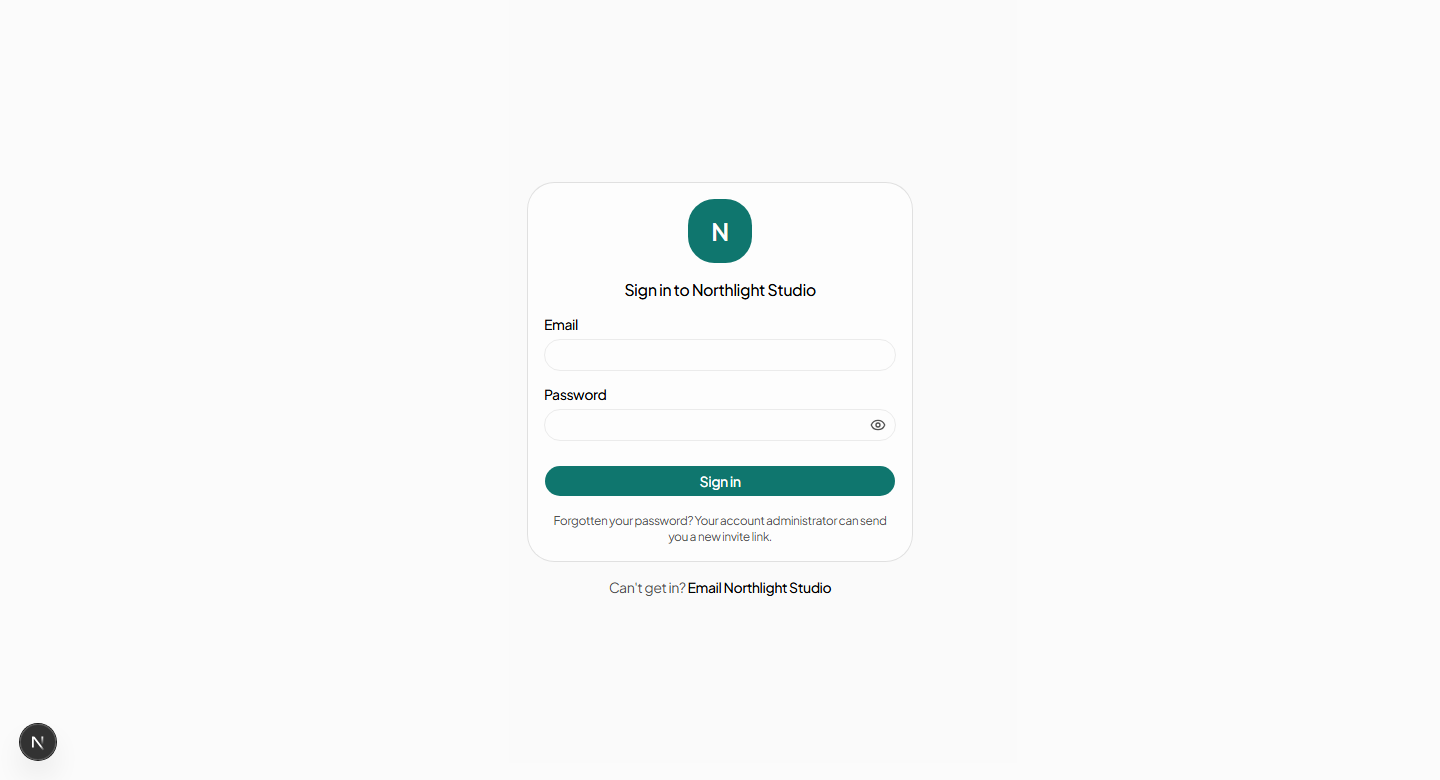
#Step one — email and password
- The eye icon beside the password field shows and hides what you have typed.
- Failures are deliberately vague — Invalid email or password — whether the account exists or not. Anything more specific would confirm which email addresses are real.
- Five failed attempts within five minutes locks the address for five minutes. The message tells you how long is left. The lock is on the email address, not on the browser, so changing device does not shorten it.
#Step two — the six-digit code
Two-step verification is mandatory for every account and cannot be switched off. Email is the only second factor. That is a genuine second factor here rather than a formality, because there is no password-reset flow anywhere in the product: getting in needs both the password and the mailbox.
| Rule | Value |
|---|---|
| Code length | Six digits |
| Valid for | 10 minutes |
| Wrong attempts before it is burned | 5, then you must request a new one |
| Codes you may request | 5 per window, then a wait |
| Time to finish the whole sign-in | 10 minutes from the password step |
Resend code sends a fresh one and invalidates the last. If you leave the page sitting for more than ten minutes after entering your password, you are returned to the password step — nothing is wrong, the proof that you passed it has simply expired.
#The first time you sign in
A brand new account has no second factor yet, so instead of the code step it shows an enrolment step: press Email me a code, enter what arrives, and press Verify and finish. From then on it is the ordinary code step. Enrolment happens at first sign-in or at invitation acceptance — never later by surprise, in the middle of something else.
#Accepting an invitation
Nobody signs themselves up. Access always begins with an invitation from an administrator, which arrives as an email containing a link that is valid for seven days.
- Open the link. If the email address is new to the platform, you are asked for your name and a password of at least eight characters.
- If you already have an account, there are no name or password fields — the page says the invitation adds this new access to the login you already have, and you accept it with one button. One person, one password, however many agencies and clients they work with.
- Enrol in two-step verification — the same Email me a code and Verify and finish pair as above.
- You are sent to the sign-in page to use the credentials you just set.
An invitation link stops working, with an explanation and no form, when it has been:
- used already,
- revoked by an administrator,
- left for more than seven days, or
- issued for a client account that has since been closed.
#Changing your password
User menu → Sign-in security. You need your current password, and the new one must be at least eight characters.
#If you have forgotten your password
There is no self-service password reset, and this is a deliberate consequence of email being the second factor: a reset link sent to the same mailbox that receives the sign-in code would collapse two factors into one.
What that means in practice:
- Platform support can clear a sign-in lockout and reset two-step verification, but cannot set a password for you.
- A new invitation attaches new access to an existing account; it does not set a new password for one.
- Contact your administrator, who will contact platform support. See Troubleshooting.
#Where you land
| Your membership | You land at |
|---|---|
| Agency scope | /admin — the agency dashboard |
| Client scope | /portal — that client's portal home |
| Platform scope | /superadmin — the platform overview |
#When sign-in is refused before you have typed anything
- “This workspace is temporarily unavailable”
- The agency has been suspended by the platform. The page carries a support address. Staff and clients of that agency see this; nobody can sign in until it is lifted.
- A plain 404 with no form
- The subdomain does not belong to any agency. Check the spelling of the address.
- “This account is closed”, after signing in
- You are a client user whose account has been offboarded. You can still read your history; everything that would change something is switched off. See Closing an account.
#Your profile and appearance
The user menu at the top right of every page — your avatar and name — carries four things:
- Light / Dark / System. Stored in your browser, per person. System follows your operating system's setting.
- Your profile. Display name, and a picture: upload one, or choose from the initials and geometric presets. Uploads are downscaled to 512 px in your browser before they are sent.
- Sign-in security. Two-step verification status and your password.
- Sign out.