Content approvals
Draft, internal review, client review, approved, published — and every way an item moves between them.
/admin/content — blog posts, social copy, emails and website text, moving through
review until somebody has said yes in a way you can point at later. This is the module with the
most rules, so it is worth reading the state diagram before configuring chains.
#The seven states
| State | Means | Who is being waited on |
|---|---|---|
| Draft | Being written. Editable. | The author |
| Internal review | With your own approval chain, before the client ever sees it. | Your team |
| In review | With the client. | The client |
| Changes requested | Sent back to the author, from either review stage. | The author |
| Approved | Signed off, not yet published. | Your team, to publish |
| Published | Done. | Nobody |
Draft ──submit──> Internal review ──approve──> In review ──approve──> Approved ──publish──> Published
  ^                     │                          │                      │
  └──── Changes requested ──────────────────────────┘                      │
└───────────────────── recall (pull it back) ─────────────────────────────┘#The list
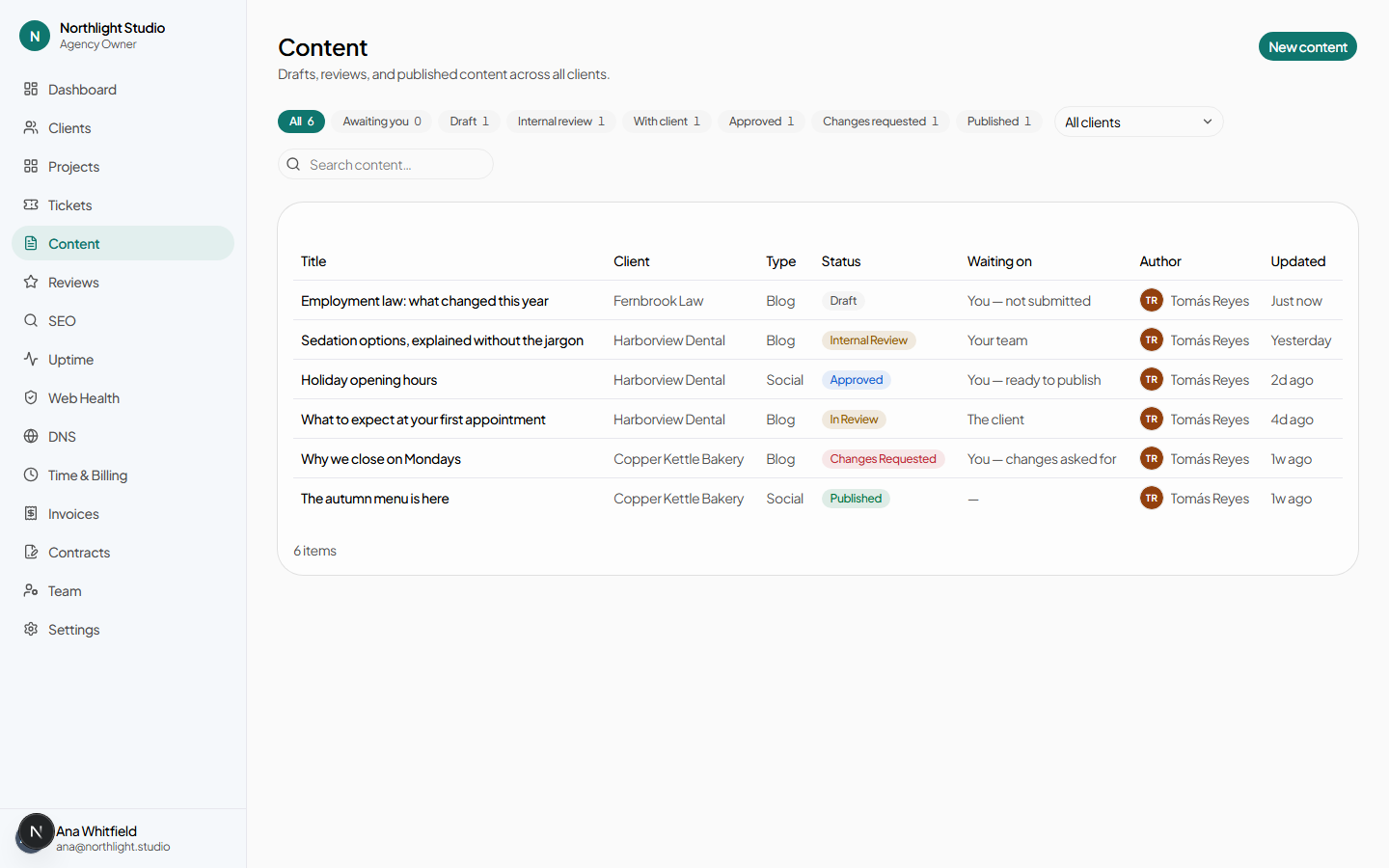
- All / Awaiting you / Draft / Internal review / With client / Approved / Changes requested / Published. Awaiting you is the one to work from — it is the subset where you personally are the blocker.
- Client filter and Search content….
- The Waiting on column names the person or side the item is sitting with, which is the question the status alone does not answer.
#Writing
New content asks for:
| Field | Notes |
|---|---|
| Client | Which client this is for. |
| Type | Blog, Social, Email or Website. |
| Planned publish date | Optional. An overdue one is highlighted on the item's own page. |
| Title | |
| Body | With a Write / Preview toggle and a live word and character count. |
| Reference files | Briefs, logos, screenshots — context for the work rather than part of it. Staged in the browser and uploaded before the record is saved, so a draft never exists with half of them missing. Clients can add files here too. |
Finish with Save as draft or Save & send for review. The deliverable itself is added on the item's own page, below.
#The deliverable
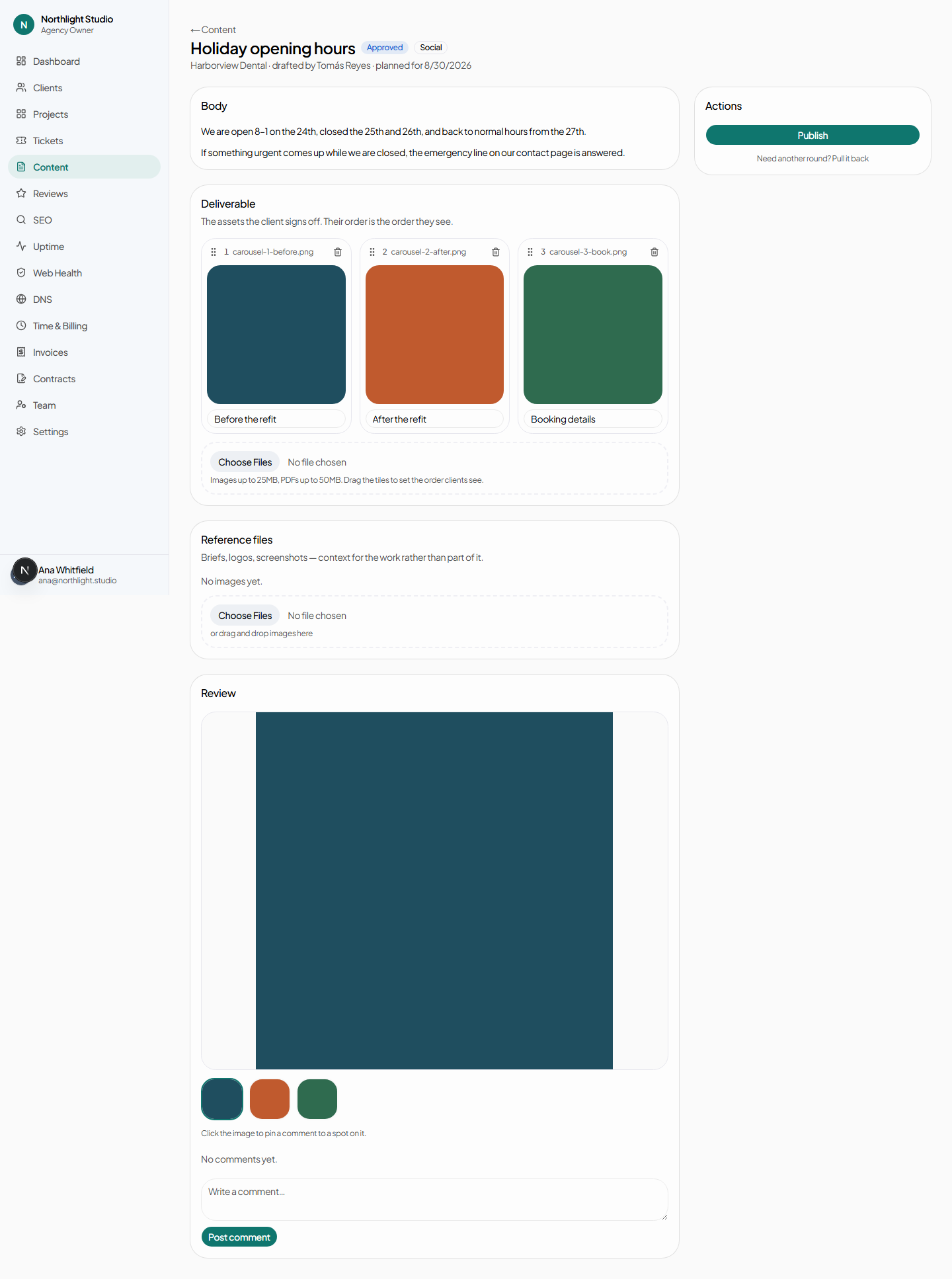
The assets the client signs off — as distinct from the reference files above, which are what somebody sent you. For most agency work the deliverable is the media: a graphic, a carousel, a proof. The copy field beside it is the caption, the blog text or the email body.
| What | Detail |
|---|---|
| Formats | PNG, JPEG, GIF, WebP, AVIF and PDF. |
| Size | Images up to 25MB, PDFs up to 50MB. |
| Order | Drag the tiles. A carousel is a sequence, and this is that sequence. |
| Alt text | Per image, saved as you leave the field. |
#Why you cannot edit assets during review
Once an item is out for approval — internal or with the client — the deliverable is locked. The panel says so rather than offering controls that would fail.
The reason is what an approval is for. Somebody is being asked to sign off on a specific set of assets, and a set that can move underneath them while they look at it is not something anybody can meaningfully approve. Ask for changes, or withdraw the item, and it unlocks.
#Pinning a comment to a spot
On the Review card, click anywhere on an image to drop a pin, then write the comment. It appears as a numbered marker on the image and as a numbered comment in the thread — clicking either finds the other.
Both sides see the same pins in the same places, and a pin holds its position on a phone as well as a desktop. Comments without a pin are still comments on the item as a whole. Removing an asset keeps the comments that were pinned to it, as general comments — a client's words about the work are not deleted by deleting a file.
The body is editable while the item is in Draft or Changes requested, and locked in every other state — an approval has to be an approval of something specific.
#Approval chains
There are two, configured separately by different people:
| Chain | Governs | Configured by | Where |
|---|---|---|---|
| Agency chain | Internal review, before the client sees it | Your agency | Client record → Settings |
| Client chain | The client's own review | The client | Portal → Your team |
Both are built the same way — an ordered list of steps, each with:
- a set of approvers, and
- a mode: any one of them clears the step, or all of them must sign off individually.
Steps are worked through in order. A chain can have up to ten steps with up to twenty-five approvers each — well past anything an agency has asked for, and there as a guard rather than an editorial opinion.
#Can an author approve their own draft?
That is one agency-wide setting: Allow self-approval, on Settings → Branding. With it off, an author who is also an approver is skipped for their own items — which is usually what a two-person agency wants right up until it makes a chain impossible to clear.
#Moving an item along
The buttons you see depend on the state and on whether you are eligible for the current step.
- Submit for review
- From Draft or Changes requested. Goes to internal review if there is an agency chain, otherwise straight to the client.
- Approve
- In Internal review, when you are an approver on the step it is currently sitting at. Once the step clears, the item moves to the next step, or on to the client.
- Request changes
- With a What needs changing? note. Sends the item back to the author as Changes requested, from either review stage.
- Publish
- From Approved. This records that the item went out; it does not post it anywhere.
- Need another round? Pull it back
- Recalls an approval, with a reason. For the case where somebody approved and then noticed something — the alternative being a second item that duplicates the first.
#Comments and versions
Both sides comment on the same thread; there are no internal notes on content. Version history is shown alongside the body, so a client asking "was this the copy I approved?" has an answer.
#What gets emailed
One notification, batched: a daily digest to each person with items waiting on them, listing what and for how long. There is no per-approval email, on purpose — a review workflow that emails on every transition trains people to filter it.
The unbatched signal is the dashboard, which lists anything sitting with a client for more than five days.
#What the client sees
Their Content page lists items in review with an Awaiting you filter. On an item they get the body, the version history, the comment thread, an approval-progress card showing their own chain and whether they have already approved, and — with content.approve — Approve and Request changes. See Approving content as a client.