Your team
Inviting staff, assigning roles, weekly capacity, handing over work and terminating access.
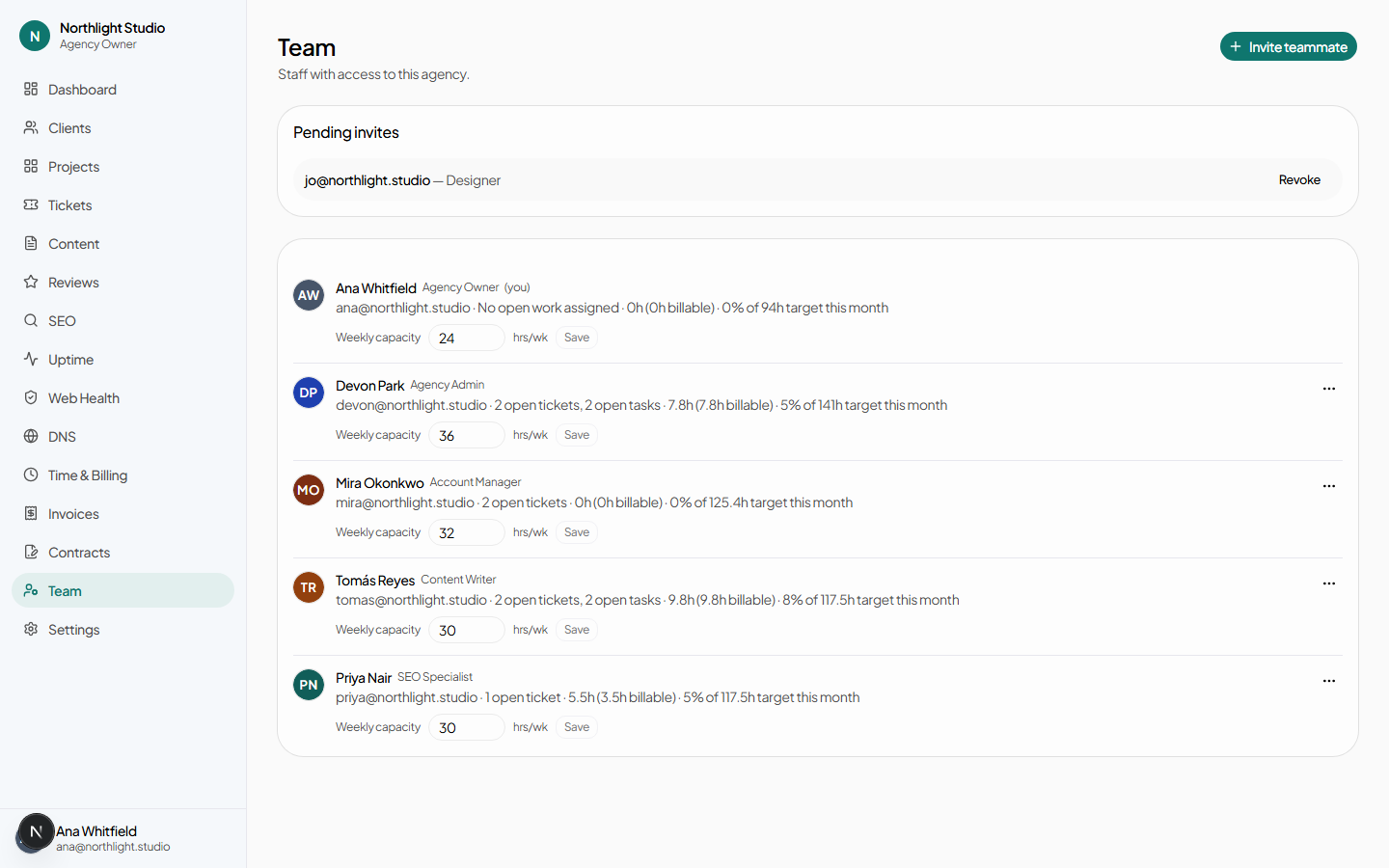
/admin/team — your own staff. Who has access, what they can do, how much capacity they
have, and how to take access away without dropping the work they were holding.
#Inviting a teammate
Invite teammate opens a dialog: an email address and a role. The role is the whole of what that person can do, and it can be changed later.
They receive an invitation valid for seven days. If they already have an account on the platform — because they also work with another agency here, or are a contact at a client — the invitation adds this access to their existing login rather than making a second one.
Revoke on a pending invitation cancels it; the link stops working immediately.
#Agency seats
Each active member occupies one agent seat on your subscription. At the ceiling, raise the seat count in Settings → Subscription — or disable a member you are no longer working with.
#Choosing a role
| Role | Shape of it |
|---|---|
| Agency Owner | Everything, including countersigning contracts and changing the subscription. |
| Agency Admin | Everything operational. Drafts and sends contracts but does not countersign; reads billing but does not change it. |
| Account Manager | Owns accounts: clients, projects, tickets, content, SEO, uptime, view-as. Reads billing. |
| Content Writer | Creates and comments on content. Nothing else. |
| Designer | Same as Content Writer. |
| SEO Specialist | Search work, uptime viewing, and raising a ticket from what they find. |
The full permission-by-permission matrix is in Roles and permissions.
#Weekly capacity
Hours per week, per member. This is what the utilisation figure on the time report divides by; without it, that column has nothing to compute and stays empty.
Set it and press Save on the row.
#Taking access away
The Actions menu on a member's row carries three options, in increasing order of finality. You cannot act on your own row.
- Disable access
- They can no longer sign in. Everything assigned to them stays assigned. Reversible with Re-enable access. This is the right first move for someone on leave, or for an account you are unsure about.
- Hand over their work
- Offered when they hold open work. Choose who it goes to and confirm; their open tickets and tasks are reassigned. Available on its own, without disabling anybody.
- Terminate
- Ends the membership. The confirmation names their open workload before you commit, because terminating someone holding twelve open tickets is a different decision from terminating someone holding none.
#What stays behind
Removing someone's access does not remove what they did. Their comments, their time entries, their approvals and their audit entries all remain, attributed to them — that record is what makes the history readable, and the audit log is append-only by design.
#Client-side people
Your clients' users are not managed here. They are invited from the client's Team tab, or by the client themselves from their own Your team page.