Agency settings
Your logo and colour, content approval policy, seats, subscription and the audit log.
/admin/settings — four tabs: Branding, Subscription,
Your access and Audit log.
#Branding
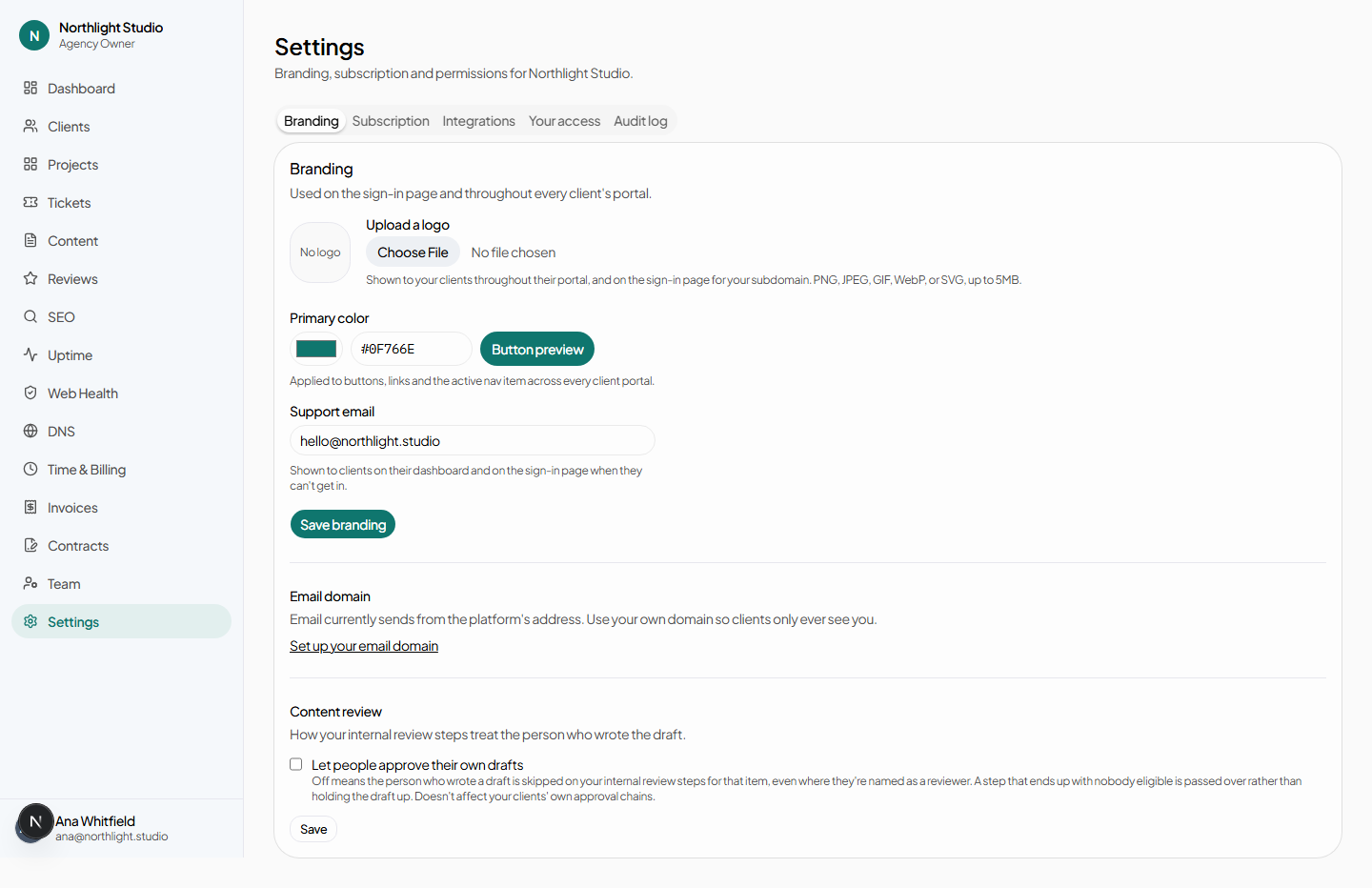
#Logo
Uploaded from the file picker, removable behind a confirmation. It appears in the sidebar of the agency portal and every client portal, and on the sign-in page.
A PNG with a transparent background works best, because the same file has to sit on both the light and the dark theme.
#Primary colour
A swatch and a hex field. The value becomes CSS variables for the whole shell:
- the sign-in page,
- every page of the agency portal,
- every page of every client's portal,
- the public contract signing page.
Nothing gates this behind a plan or an add-on. An agency whose clients can tell they are running someone else's software is the outcome this product exists to prevent, so it cannot be something some tiers buy.
#Support email
Shown to your clients on their portal home and on the sign-in page. It is what they will use when something is wrong, so make it a mailbox somebody reads.
Save branding applies all three at once.
#Email domain
Set up your email domain — or Manage email domain once one exists — leads to Sending from your own domain.
#Allow self-approval
One switch, agency-wide: may the author of a piece of content approve their own draft when they are also an approver on the chain?
With it off, an author who appears in the chain is skipped for their own items. That is usually right — and it is also how a small team makes a chain impossible to clear. Turn it on if your agency is two people and one of them writes everything. See Content approvals.
#Subscription
This is what you pay us. Invoicing your own clients is a different thing entirely and lives in Invoices.
#Seats
Two numbers: agent seats and client seats. They are both the invoice and the ceiling — you are billed per seat, and you cannot exceed what you have bought.
Reset puts the inputs back to the saved values.
#Payment and subscription state
| Button | What it does |
|---|---|
| Add a payment method | Leaves for the payment provider's hosted page. Card details never touch this platform. |
| Manage payment & invoices | Opens the provider's billing portal, where your receipts and card live. |
| Start subscription | Available once a payment method exists. |
| Cancel at period end | Stops the renewal. Everything keeps working until the period ends. |
| Keep subscription | Undoes a pending cancellation. |
#If payment fails
The agency goes read-only rather than locked out. Everything can be read; nothing can be changed until it is settled, and scheduled paid work stops. Locking out the person most likely to be able to pay would be the wrong failure.
#Integrations
Accounts your agency connects once, and everybody here works through. Needs agency.manage_integrations.
- Search Console and Analytics, read on your clients’ behalf. Access is read-only — this platform can never change anything in Google. One account usually covers every client you manage, so this is normally done once.
A connection that stops working says so rather than failing quietly, and names the account that needs reconnecting.
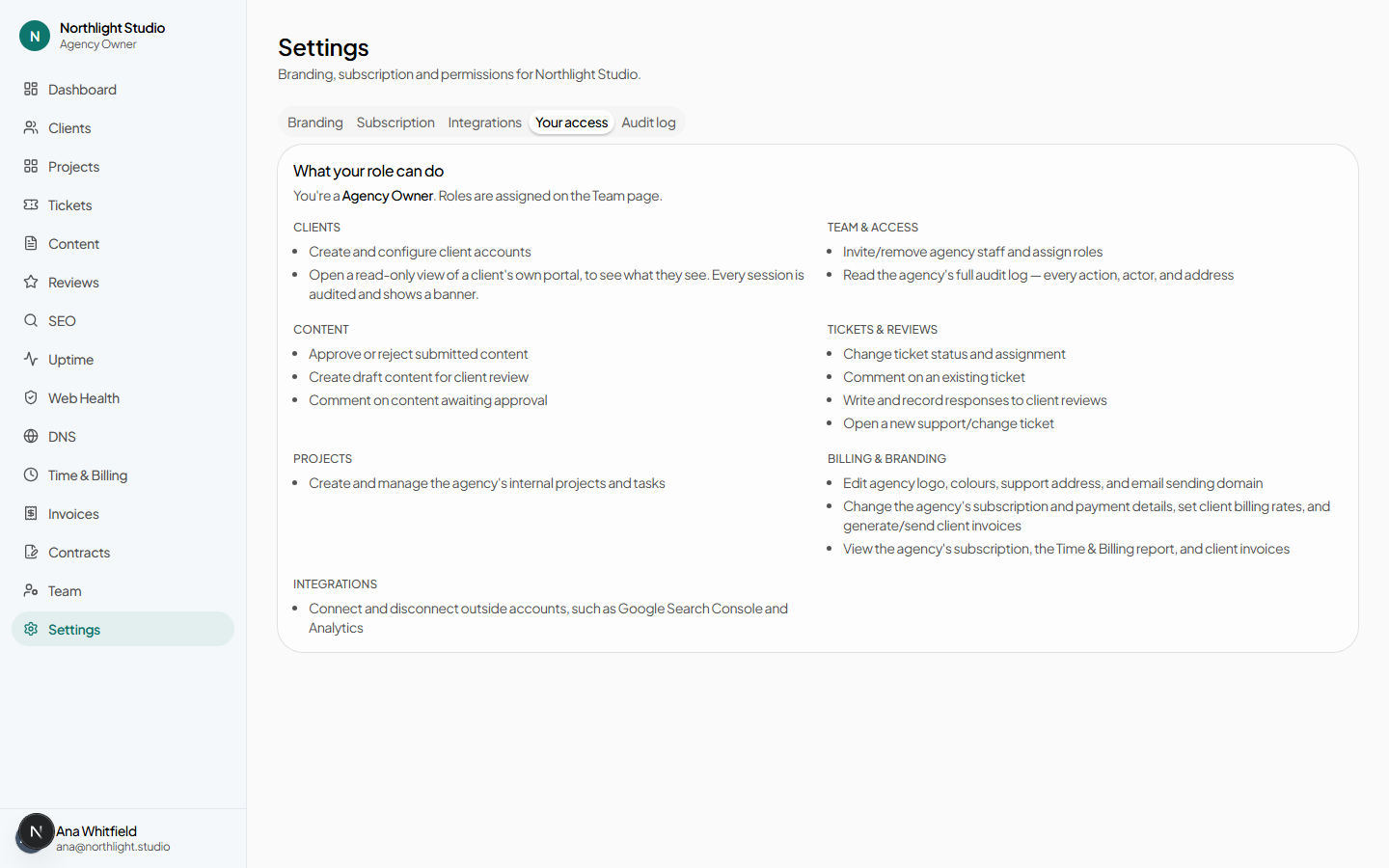
#Your access
A read-only list of every permission your own role holds, grouped by area. This is the page to open when the documentation says something needs seo.manage and you want to know whether you have it — the keys shown here are the same strings this library uses.
#Audit log
Open the full audit log leads to the audit log, which needs agency.view_audit — a permission kept separate from agency.manage_team on purpose, so that whoever can grant access cannot quietly grant themselves a look at everyone's activity.