The client portal
Home, requests, content review, reviews, search visibility, brand assets, team and agreements.
/portal — what your client sees. Same address as your own portal, same logo, same
colour, entirely different navigation. This page is written for agency staff who need to know
exactly what a client can see and do; it doubles as the reference to send a client who asks.
#What appears in their sidebar
Two sections are always there. The rest appear only when the module is enabled and visible for that client — and, for Agreements, only when the person also has the permission.
| Sidebar entry | Appears when |
|---|---|
| Home | Always |
| Requests | Ticketing module enabled and visible |
| Content | Content module enabled and visible |
| Reviews | Reputation module enabled and visible |
| Search visibility | SEO module enabled and visible |
| Agreements | Contracts module enabled and visible and contract.view |
| Brand assets | Always |
| Your team | Always |
There is no command palette in the client portal. It is a small enough surface that the sidebar is the whole of the navigation.
#The one rule worth knowing
Reads are gated on the module; writes are gated on permissions. A client user with the Viewer role can open every section you have enabled and change nothing in any of them. That is a complete and supported configuration — it is how you give a stakeholder visibility without giving them a say.
#Home
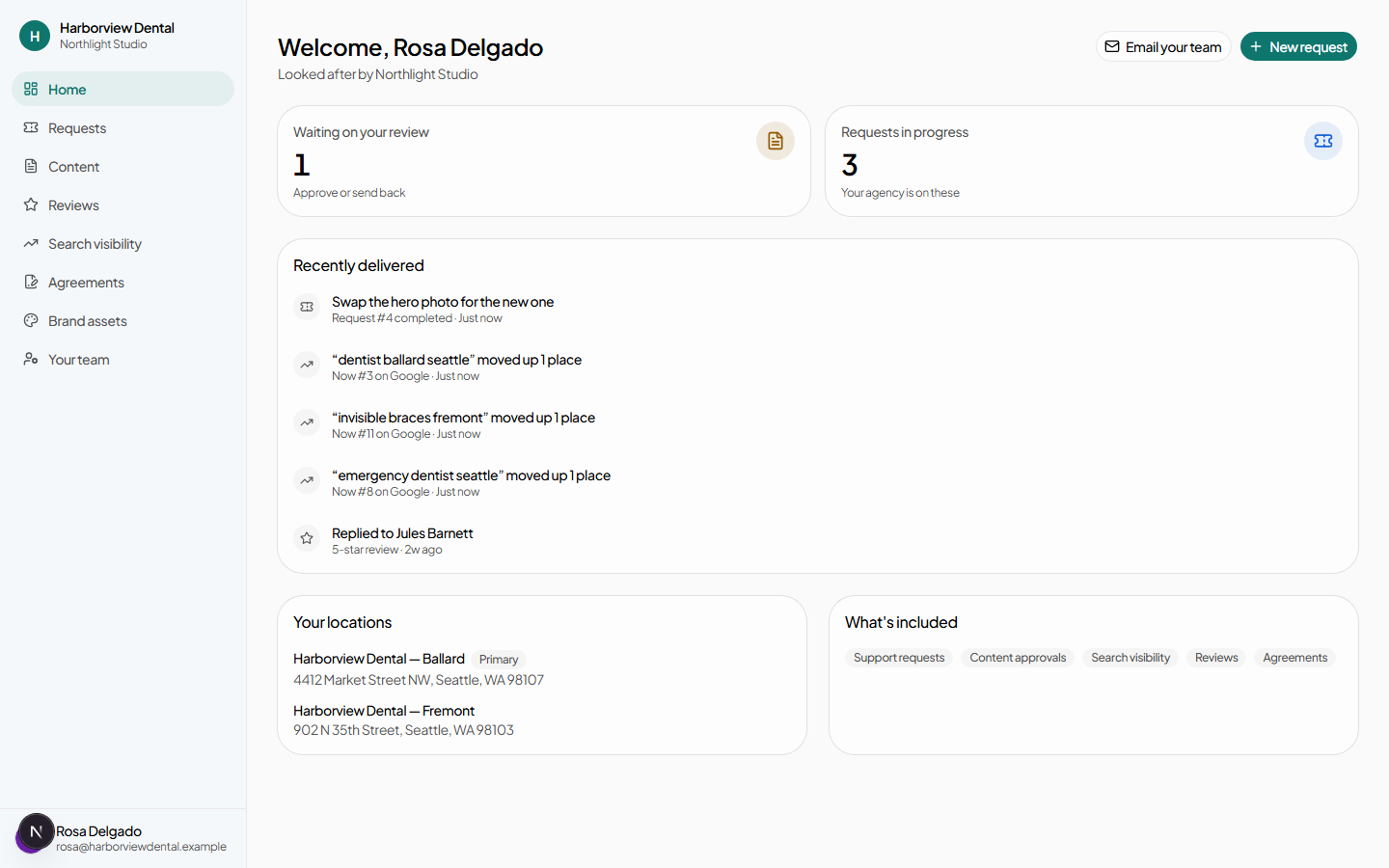
- What's included — the modules enabled and visible for this client, named the way the client would name them rather than the way the catalogue does.
- Waiting on your review — links to content filtered to items needing them.
- Requests in progress — links to their requests.
- Recently delivered — published content, closed requests and answered reviews, in one feed. This is the "what have you actually done for us" answer, without anyone having to ask.
- Email your team — a mail link to your agency's support address.
- New request, when the ticketing module is on and they hold ticket.create.
#Requests
Tickets, named the way a client thinks of them.
#Raising one
New request opens a dialog with four fields:
| Field | Prompt they see |
|---|---|
| Summary | e.g. “Update office hours on homepage” |
| Details | “What should change, and where? Links and exact wording help.” |
| How urgent is it? | Low (whenever) / Medium (this week) / High (blocking us) |
| Attachments | Picked or dragged; staged before submitting. |
The urgency labels are written in consequences rather than adjectives, because "High" on its own means whatever the person filling the form wants it to mean.
#Their queue
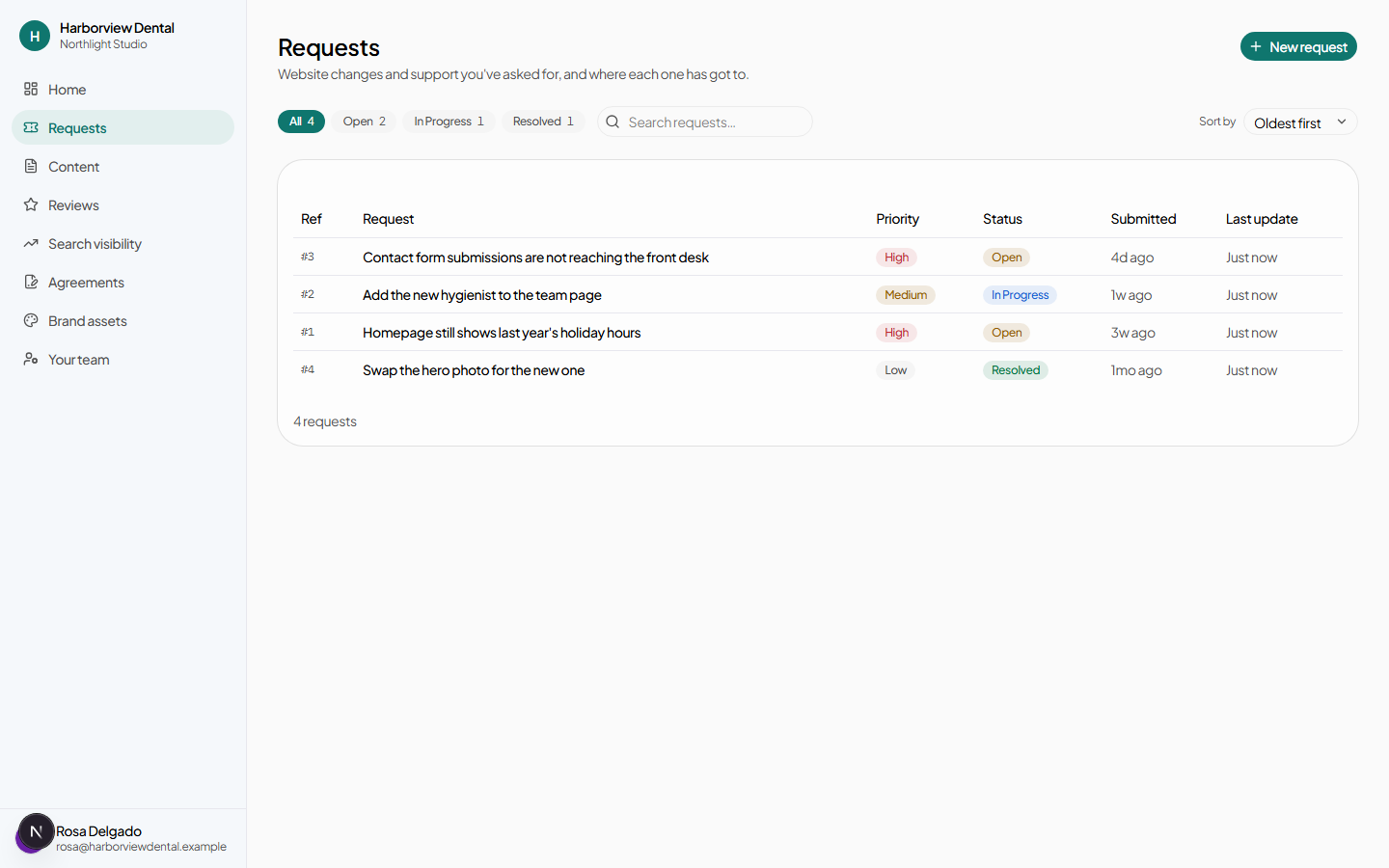
All / Open / In Progress / Resolved with counts, a search box, and a sort control (newest, oldest, status).
#A request
- The description, status, priority and the shared comment thread.
- An SLA countdown, when the client has a response time set.
- Comments, with ticket.comment.
- Attachments, from either side.
- This isn't fixed — reopen on a resolved request. Not offered once the request has been converted to a project.
They never see internal notes, logged time, or who on your team the request is assigned to.
#Content
Items awaiting their review, with an All / Awaiting you filter. Covered in full in Approving content as a client.
#Reviews
Read-only: each review, its rating, its sentiment, and the response your team wrote. They cannot edit or write a reply — see Reviews.
#Search visibility
Read-only, and deliberately written in plain language rather than SEO vocabulary:
- Searches tracked, On page one, Moved up recently, Dropped out of results, In the map pack.
- A visibility-over-time chart.
- The tracked-search table.
- Alerts that are being watched, and ones that have resolved.
- When Google answers with AI — whether they are cited in AI Overviews.
#Brand assets
The same brand profiles your team edits on the client record: names, taglines, font notes, colour palettes and files. With client.manage_branding — the Client Owner and Marketing Manager roles have it — the client can add and edit them; without it they can look.
This is the module that most often saves an email thread: the client's designer uploads the logo once and your team stops asking for it.
#Your team
Two things live here.
#Inviting their own colleagues
With client.manage_team — the Client Owner role — a client can invite their own people and choose their role, and revoke a pending invitation. Every invited person counts against your client-seat ceiling.
#Their content approval chain
The client builds their own review chain here: steps, approvers per step, and whether a step needs any one of them or all of them. This governs their side of content review.
Your own internal chain is configured separately, by you, on the client's Settings tab.
#Agreements
Their contracts, with a Needs your signature badge on rows waiting on them.
- Download signed PDF once a contract is complete.
- Email me my signing link when they are an unsigned signer — the common case being a link that got lost in a mailbox.
- A withdrawn agreement shows who withdrew it and why.
Signing never happens inside the portal, even for a signed-in client: the emailed link and its one-time code are what tie a signature to a person. See the signing ceremony.
#Their own account
The user menu carries the same things yours does: Light / Dark / System, Your profile (display name and picture) and Sign-in security (two-step verification and password).
#When the account is closed
An offboarded client keeps every page and loses every button. A persistent banner says the account is closed, and every write is refused rather than merely hidden. They keep their record of what they asked for and what was agreed — see Account status.