Approving content as a client
Review chains, who is being waited on, and how to ask for changes.
/portal/content — the part of the client portal that most often needs explaining to a
client, because approval is the step that blocks everything downstream. This page is written so you
can send it to them.
#Finding what needs you
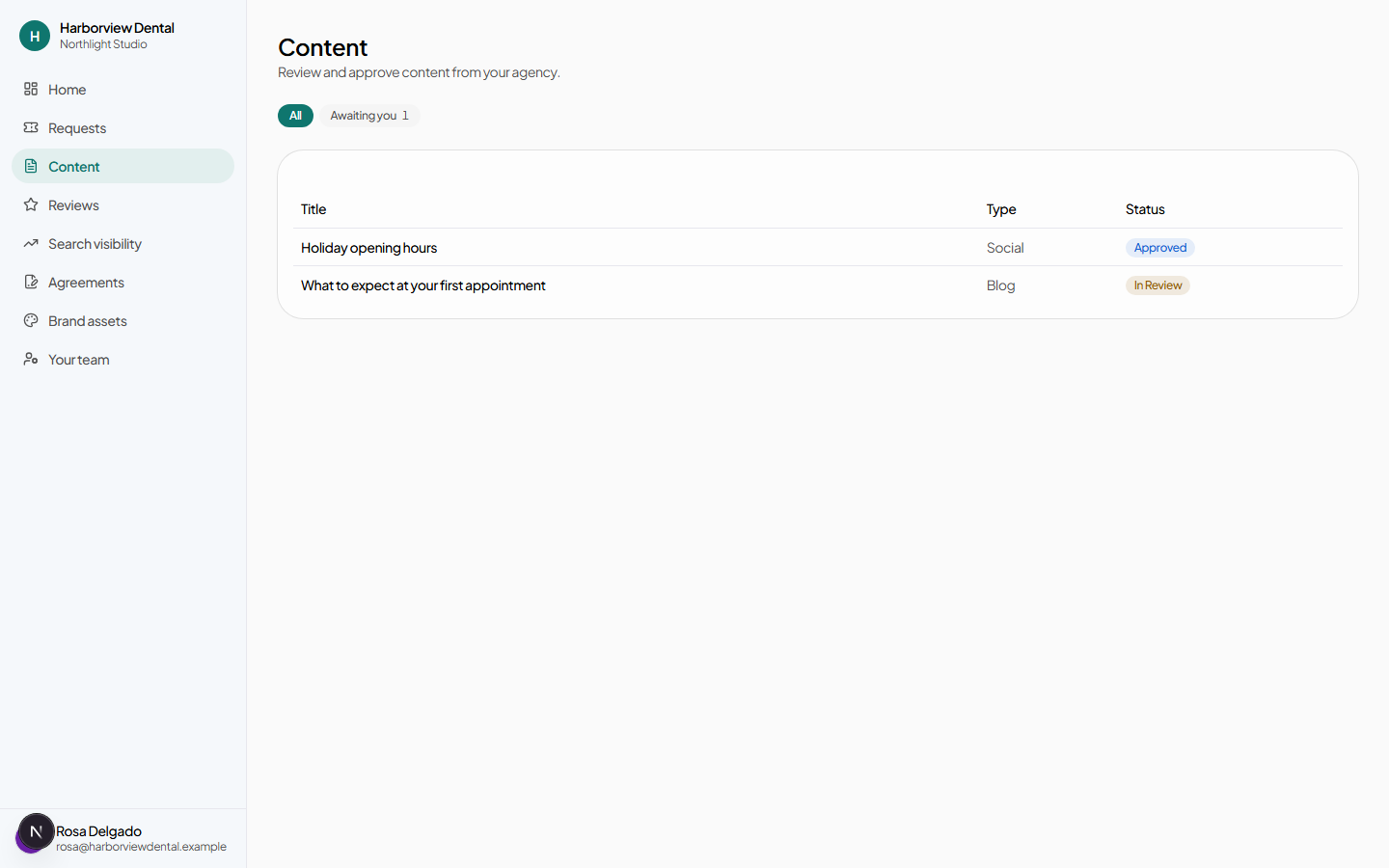
Content in the sidebar lists everything in review, with two filters: All and Awaiting you.
Awaiting you is the one that matters. It is not everything in review — it is the subset where you personally are the person being waited on. If it is empty, nothing is blocked on you, whatever else is in the list.
#Reviewing an item
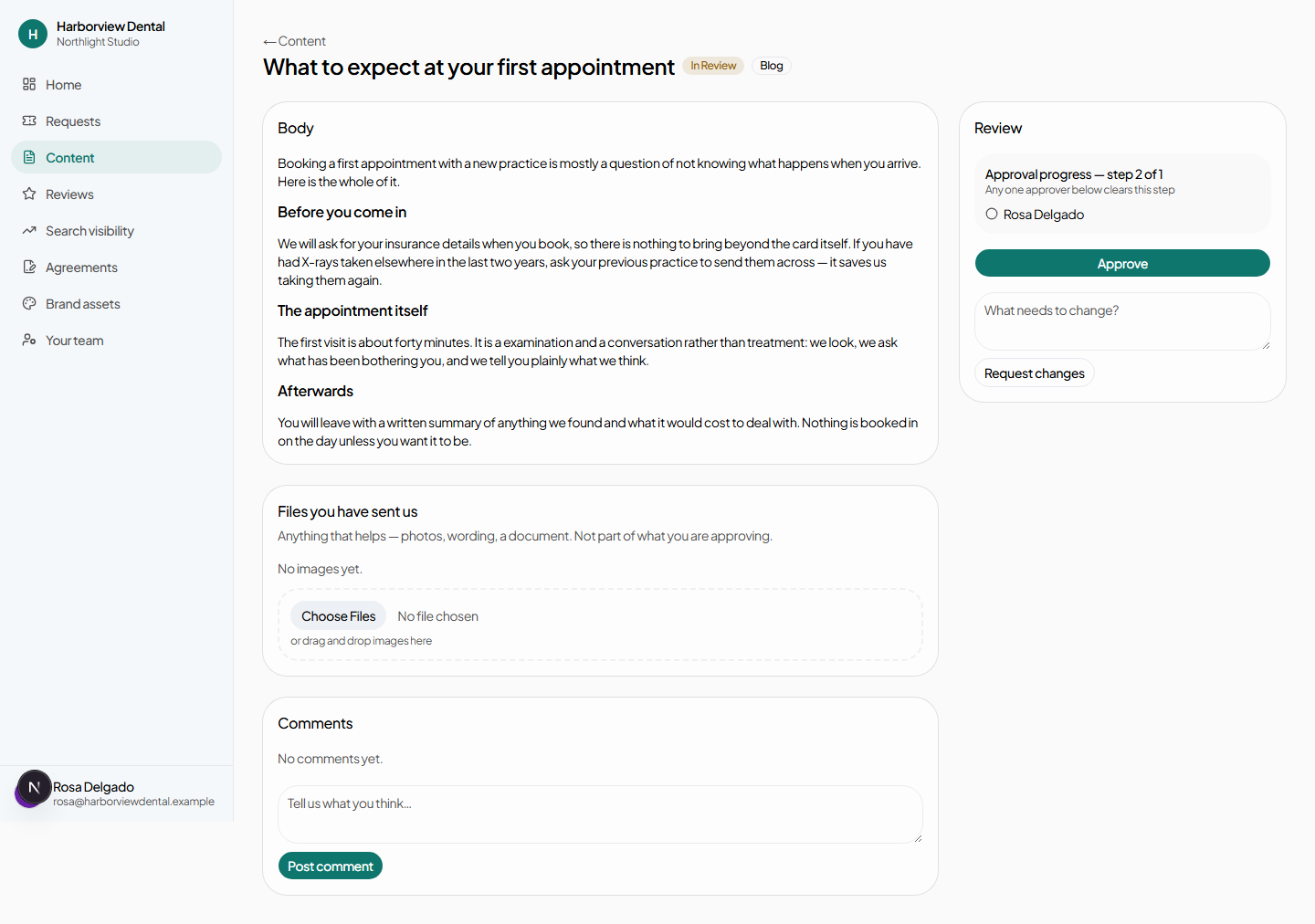
An item carries four things:
- What we made
- The finished assets, in the order they are meant to be seen, with the copy that goes with them. Click any image to view it larger.
- Version history
- Earlier drafts, alongside the current one. This is what answers "is this the copy I approved?" six weeks later.
- The approval progress card
- Your organisation's review chain, which step the item is currently at, who is eligible to clear it, and whether you have already approved. If your name is not on the current step, that is why there is no Approve button.
- The comment thread
- Shared with the agency. Needs content.comment.
#Pointing at exactly what you mean
Click anywhere on an image to put a pin there, then write your comment. The pin shows as a numbered marker on the picture, and your comment appears numbered to match — so "the logo is too small" lands on the logo instead of somewhere in a thread.
Your agency sees the pins exactly where you put them. A comment without a pin is still a comment on the whole item, which is the right thing for "the tone is off" or "can we move this to Tuesday".
#Approving
Approve clears your part of the current step. What happens next depends on how the chain is configured:
- A step set to any one approver clears as soon as one of you presses it.
- A step set to all approvers waits until every named person has approved individually.
When the last step clears, the item becomes Approved and the agency can publish it.
#Asking for changes
Type into What needs changing? and press Request changes. The item goes back to the writer with your note attached, and the whole chain starts again when they resubmit.
#Setting up who approves
The chain is yours to configure, on Your team in the sidebar. With client.manage_team you can:
- + Add step for each round of sign-off you want.
- Choose the approvers on each step.
- Set the mode — any one of them, or all of them.
- Save approval chain.
Most organisations need one step with one or two people on it. Two steps make sense when a specialist checks the facts and a manager checks the tone.
#If you have no chain
A client with no chain configured has no client-side review: content the agency approves internally goes straight to Approved. Set up a chain if you want a say.
#What you will be emailed
One message: a daily digest listing what is waiting for your approval and for how long. There is no email per item, on purpose — a workflow that emails on every transition is a workflow people filter into a folder they never open.
#For agency staff reading this
The client-side chain is only half of it. Your own internal chain — who on your side signs off before the client ever sees a draft — is configured on the client's Settings tab, and the full workflow is in Content approvals.
The dashboard lists anything sitting with a client for more than five days, which is the report to work from before a status call.